If you would like to obtain a list of bookings (between specific dates), users, or admins on the system, this guide will take you through how you can download this data to a .CSV spreadsheet file.
How to Export Data
From the navigation menu on the left side of your system go to Settings > Export Data.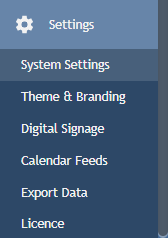
Follow the Bookings, Users or Admins sections below, depending on what you would like to export,
Bookings
Use Booking Date Range to select the Start Date and End Date of the bookings you would like to download. To set the dates to today's date click Set Start/End Dates to Today.
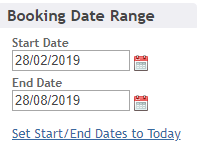
Click Download Bookings. 
A .CSV file will download with the bookings between the dates you selected. You can open this and manipulate or report on it as required.
Users
Click Download Users.
A .CSV file will download containing all the current users on the system: username, email address, department, first & last names, when they last logged on, and basic details of their bookings.
Admins
Click Download Admins.
A .CSV file will download containing all the current Admins on the system: username, first and last names, and when they last logged in.
Was this article helpful?
That’s Great!
Thank you for your feedback
Sorry! We couldn't be helpful
Thank you for your feedback
Feedback sent
We appreciate your effort and will try to fix the article