- Log into your administrator account on G Suite then go into the Users section.
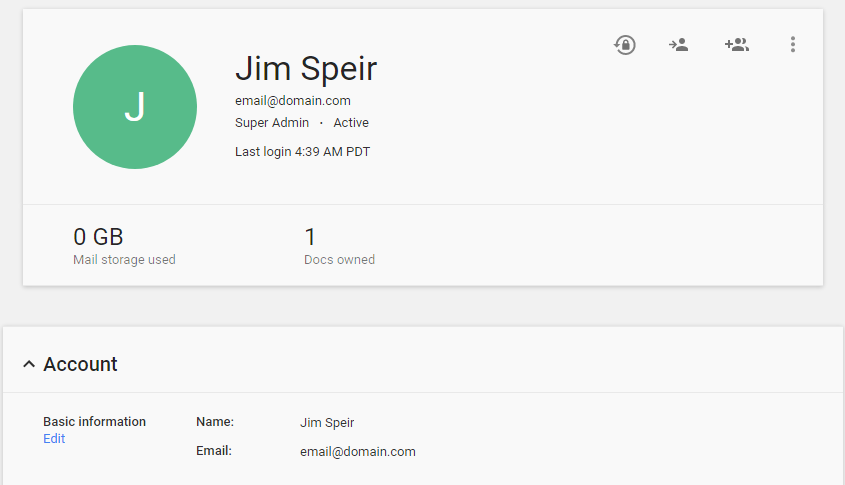
- Find the user you want to update and click their name.
- Under the Account menu's Basic Information section, click Edit.
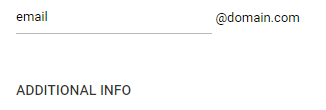
- Click Additional Info at the bottom of the pop-up.
- Click Next until you get to the Employee Details category. Type in a new department in the Department box then save your changes by clicking Update User.
The next time someone logs in as that user, the new department will be assigned to their user record in Room Booking and they will inherit any permissions you have set on Room Booking for that newly assigned department.
Was this article helpful?
That’s Great!
Thank you for your feedback
Sorry! We couldn't be helpful
Thank you for your feedback
Feedback sent
We appreciate your effort and will try to fix the article