iSAMS (also known as IRIS Ed:Gen) has a number of different timetable types and we synchronise those which are marked as "published". Where a timetable isn't in force yet, you will probably find that it is marked as a "development" timetable. This article shows you what to do to make these timetables synchronise into Room Booking.
Check the timetable is set up correctly
- The timetable should be in development. You can check this in iSAMS by going to Configuration > Manage Timetables and looking for an icon in the development timetable section:
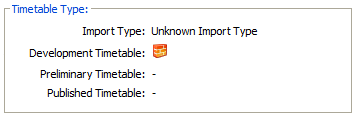
- Check with your colleagues that the timetable is ready to be added. Development timetables can still be changed, and any such changes will be reflected in Room Booking when the timetable is synchronised (usually overnight). You can use a timetable which is still being built and changed, but you should be aware that new timetabled classes could delete existing manual bookings if they clash.
- Ensure that the timetable has been allocated to weeks. This is usually done via the Configuration > Manage Periods and Days > Allocate Weeks section of iSAMS.
- If the new timetable structure differs from the old (e.g. you moved from a week with 6 periods to one with 8 periods), please send us an email with a screenshot of the new timetable layout for comparison with the old one. We will then work with you to find the best way to make the change as seamless as possible.
Pulling through the new timetable
When you're ready for the new timetable to be synchronised, you'll need to add the " Timetable Manager - Development Timetable Schedules" method to the API key you use for Room Booking. Save the changed key, then allow 1 hour for the change to be processed on the iSAMS API. Once the next automatic synchronisation (usually at 1am) has taken place the new timetable should appear on your system.
Was this article helpful?
That’s Great!
Thank you for your feedback
Sorry! We couldn't be helpful
Thank you for your feedback
Feedback sent
We appreciate your effort and will try to fix the article